Adding, editing, or removing contacts on behalf of the company to Deltek Support Center
Deltek Support Center:
Accessing Support:
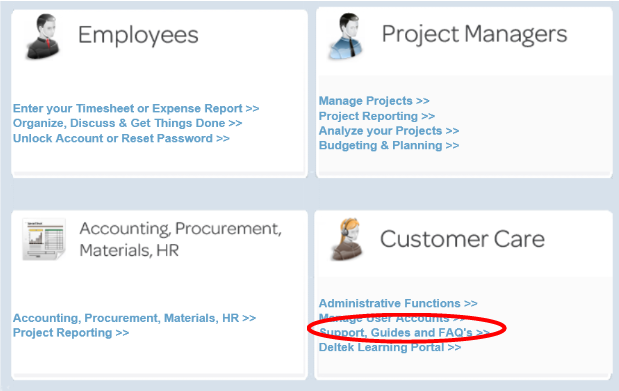
1. Access the support center via your Deltek Portal
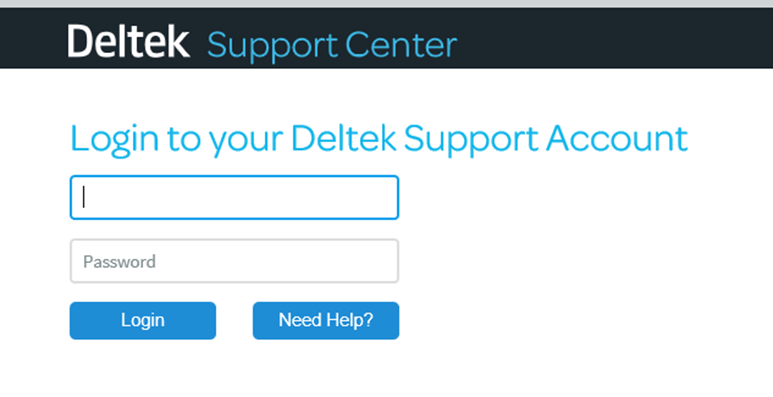
2. Enter your Username and Password in the Client Login box. Note: Username is your email address and is in all lower case.
Adding Company Contacts:
Only the Primary Support Contact or Support Contact Managers within the Support Center can add/edit/remove contacts on behalf of the company.
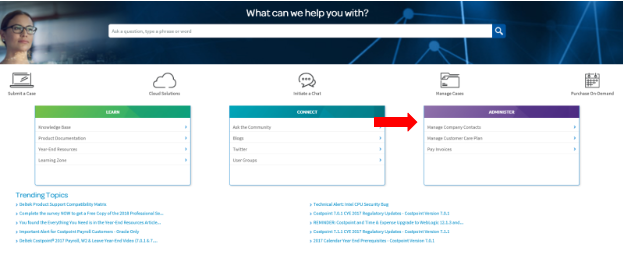
1. On the Deltek Support Center home page, select Manage Company Contacts.
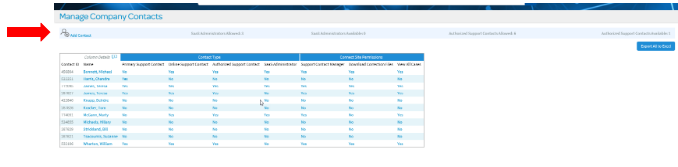
2. A grid of the current Company Contacts will load. To add a new contact select Add Contact from the top left corner.
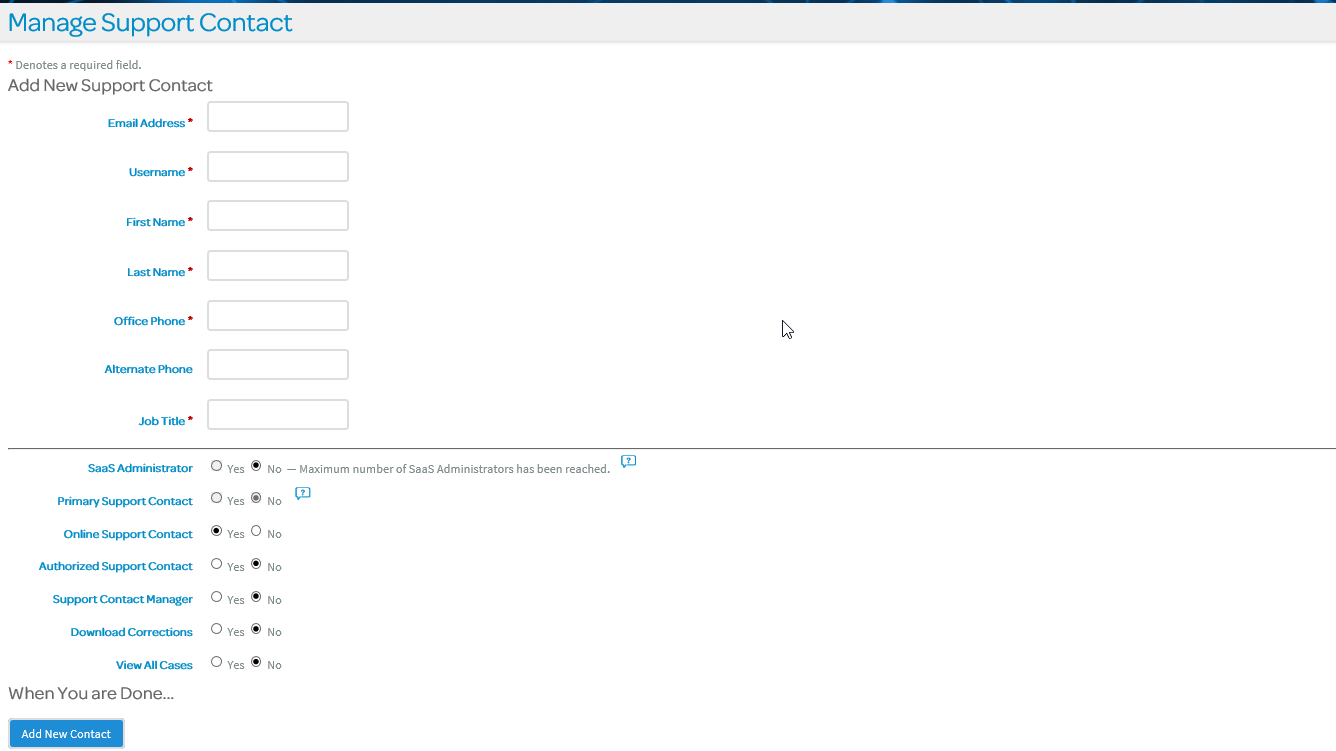
3. Complete the required fields, which include Email Address, Username (which will auto default to the email address), First Name, Last Name, Office Phone, and Job Title. In the bottom section of the contact, you will notice you can set the Support permissions for the contact by selecting Yes or No for the following:
- Online Support Contact - Select Yes if the contact can access the Support Center.
- Primary Support Contact - This option is read-only. It is there to display which contacts are Primary Support Contacts. Please see below for how to update.
- Authorized Support Contact - Select Yes if the contact can submit cases. If the Yes is grayed out and you see the "Maximum number of Authorized Support Contacts has been reached" message, you will not be able to designate this contact as an Authorized Support Contact at this time. Simply, proceed with creating the new contact. You will need to remove the Authorized Support Contact permission from an existing contact and then you will be able to add that Authorized Support Contact permission to the new contact.
- Support Contact Manager - Select Yes if you want the contact to manage support contacts and the support functions they can perform.
- Download Corrections - Select Yes if the contact can download Deltek correction files. This provides access to the Product Downloads tab and the ability to upload files from the Transfer Files to Support.
- View All Cases - Select Yes if the contact can view the cases they submitted as well as any cases submitted for the organization. Important Note: In order to view cases a contact must be an Authorized Support Contact.
4. Select Add New Contact once the form is completed.
In the event there is no Primary Support Contact (PSC) assigned or if the PSC leaves the company, you will need to have the CEO, CFO or president of the company send a letter request designating a new PSC. The signed letter can be scanned and sent via email to CCOPS@deltek.com or via fax to 339.469.8970. Please include the Company Name, Client ID, new PSC Contact with their full name, email address and phone number.
Similarly, if there is no Support Contact Manager (SCM) assigned or if the SCM leaves the company, you can follow the same steps for the PSC to update.