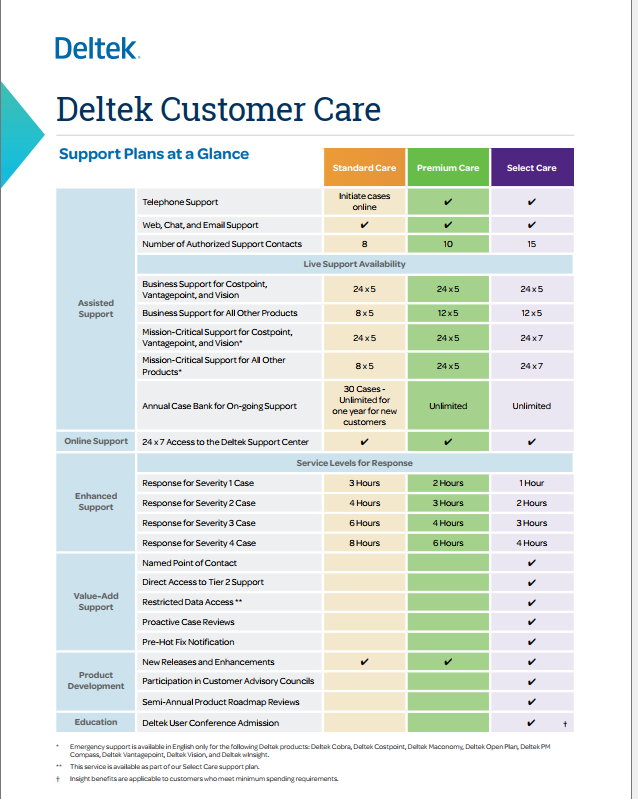
This article contains steps on how to access Deltek Support Portal, creating a Support Ticket, and checking the status of a support ticket
Deltek Support Center:
Accessing Support:
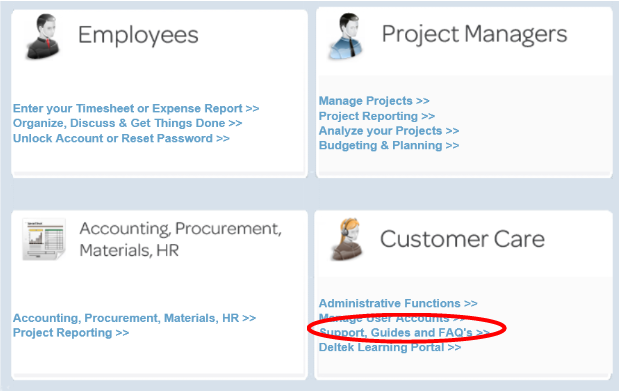
1. Access the support center via your Deltek Portal
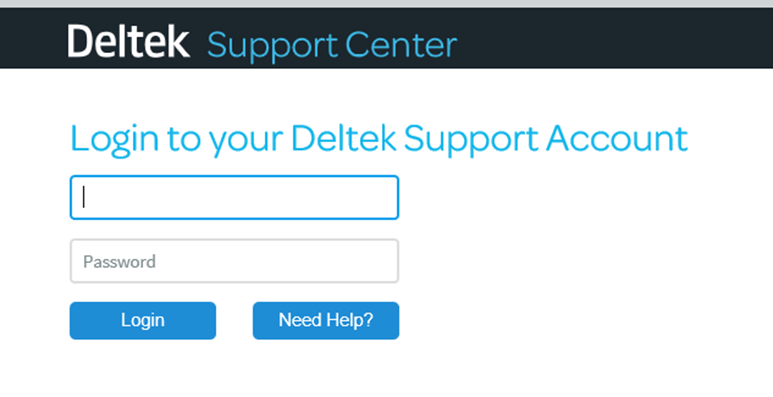
2. Enter your Username and Password in the Client Login box. Note: Username is your email address and is in all lower case.
Submitting a Case (Ticket) with Support:
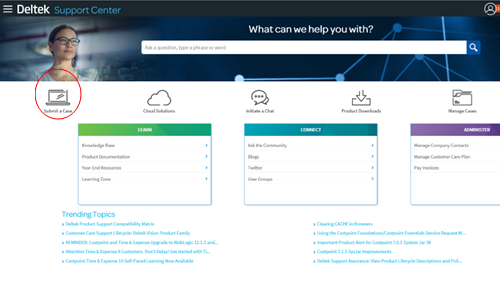
Once inside Deltek Support Center, select Submit a Case from the menu in the middle of the screen.
Upon selecting Submit Case, the screen will look like the below:
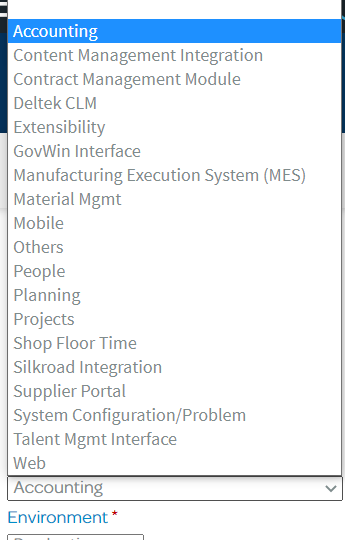
- Product: Select the appropriate product and Subproduct. As an example, you could select Costpoint then Accounting for any Costpoint accounting related questions. If the Product field is yellow, please continue to down-select until you have reached the final product options.

A: Product: Select the appropriate product and Subproduct. As an example, you could select Costpoint then Accounting for any Costpoint accounting related questions. If the Product field is yellow, please continue to down-select until you have reached the final product options.
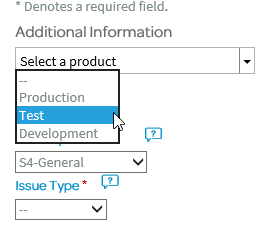
B. Environment: Select the current environment your product is in:
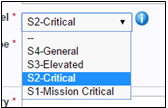
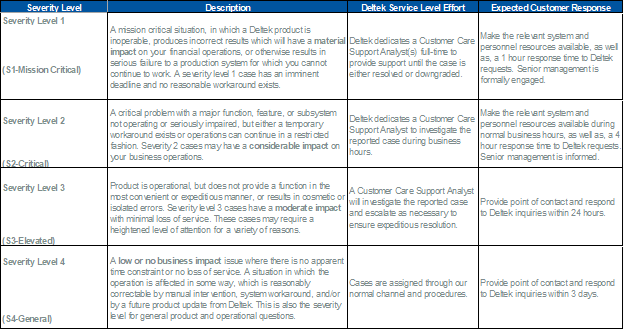
C: Severity Level: For severity level, it can vary from case to case; please select the appropriate level based on the descriptions below.
D. Issue Type: Please select the Issue Type from Technical or Application.
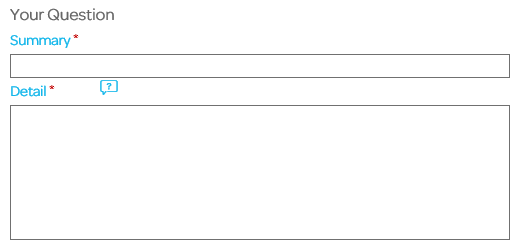
E. Summary: Provide a brief summary/description for the case.
F. Detail: Provide the detailed breakdown of the question or error received.
In the event, you have a screen capture of any errors or any attachments that will further assist the support representatives, please feel free to include them in the Attach Documents section.
G. CC: If you would like to CC (Carbon-Copy) someone on the ticket, please complete the CC field with the appropriate email address.
H. Upon completing the form, select Continue. Note: The system will display a pop up box to confirm you would like to submit your ticket. Please ensure you select to submit your case.
At this point, you can view the status of the ticket via the Deltek Support Center site by selecting Manage Cases from the middle menu:

Note: As the ticket moves through Deltek’s support center and a representative answers the ticket, you will receive an email. If they ask you to confirm something or to provide additional detail, you will need to log into Deltek Support Center to respond to the ticket by following the steps in #11 unless you are an authorized support contact on the account.