This contains steps on how to access Deltek Support Portal, and create a Cloud Solutions Request - Upload a Logo, Adding or removing SaaS Admin and Resetting 2FA
Deltek Support Center:
Accessing Support:
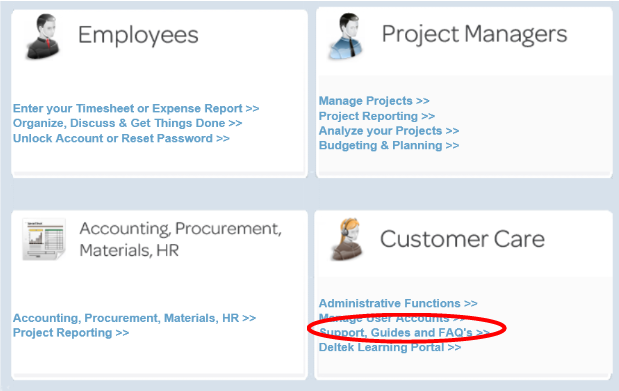
1. Access the support center via your Deltek Portal
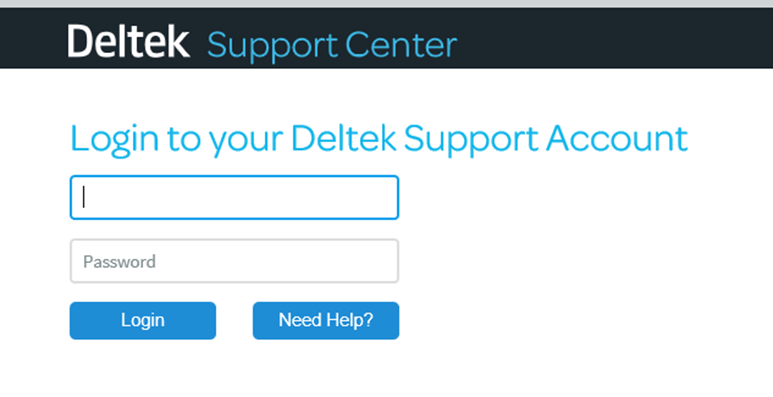
2. Enter your Username and Password in the Client Login box. Note: Username is your email address and is in all lower case.
 Cloud Solutions Service Requests
SaaS Admins on the account will have access to the Cloud Solutions Service Widgets within the Support Center.
Uploading a Company Logo
1. Go to Cloud Solutions icon in the middle menu.

2. The system may prompt you to pick between a product; please select Costpoint.
3. On the righthand side you will see the Service Requests. Please select the Upload My Company Logos option.
4. For a logo to be displayed on the Deltek Cloud Portal page, select the Cloud Portal option as shown below:

5. Select Browse to find the logo in your files. You can also add/update the company website by entering the URL in the box provided. This is optional.
6. Select Submit to process the service request. A pop up box with the ticket number will display once the request has been submitted. You will receive email notifications as the Logo request flows through the system.
Adding or Removing a SaaS Admin:
SaaS Administrator Rules:
- All CP Cloud customers are limited to 1 Primary SaaS Admin and 3 SaaS Admins.
- Primary SaaS admin’s are the users that received the welcome emails from Deltek for initial system setup
- PCI will hold a SaaS admin seat as part of system implementation
- This seat can be removed once a customer is live in their production environment
- The Primary SaaS Admin will be cc-ed on any account activation emails that are sent to new employees
- Both the Primary SaaS Admin and the other SaaS Admins will be able to access AD Manager to create credentials, reset passwords and unlock accounts
1. Please have an authorized support contact (or the Primary SaaS Admin) select Cloud Solutions; Note: if you have more than one cloud product, please select Costpoint from the drop down menu
2. Look for the Service Requests on the right-hand side
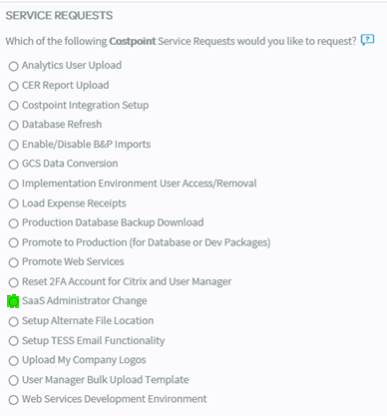
3. Select the SaaS Administrator Change option
4. Select Add or Remove; Fill in the Name, Email and Phone Number
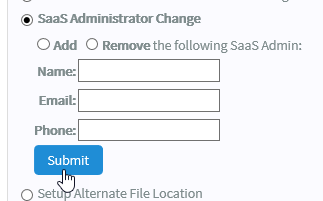
5. Select Submit to process the service request. A pop up box with the ticket number will display once the request has been submitted. You will receive email notifications as the SaaS Admin request flows through the system.
Resetting 2FA for SaaS Admins:
There are times when a SaaS Admin who is accessing AD Manager (Manage User Accounts) needs to reset where the 2FA code is going. You will follow the below steps to reset this which will allow you to update the method to receive the code (email or authenticator) as well as update the email on file that is receiving the 2FA codes.
1. Please have an authorized support contact select Cloud Solutions; Note: if you have more than one cloud product, please select Costpoint from the drop-down menu
2. Look for the Service Requests on the right-hand side
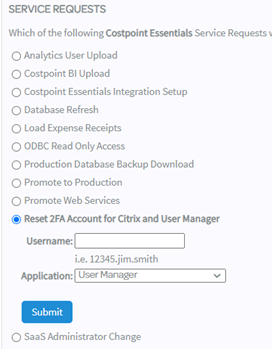
3. Select the Reset 2FA Account for Citrix and User Manager option
4. Enter in the username (12345.name.name) and select User Manager from the Application drop down.
5. Select Submit to process the service request. A pop up box with the ticket number will display once the request has been submitted. You will receive email notifications as the SaaS Admin request flows through the system.